Search and compare
Search finds an object across every cluster you can see. Compare puts two objects side by side and shows what differs. A command palette reaches either from anywhere.
Search
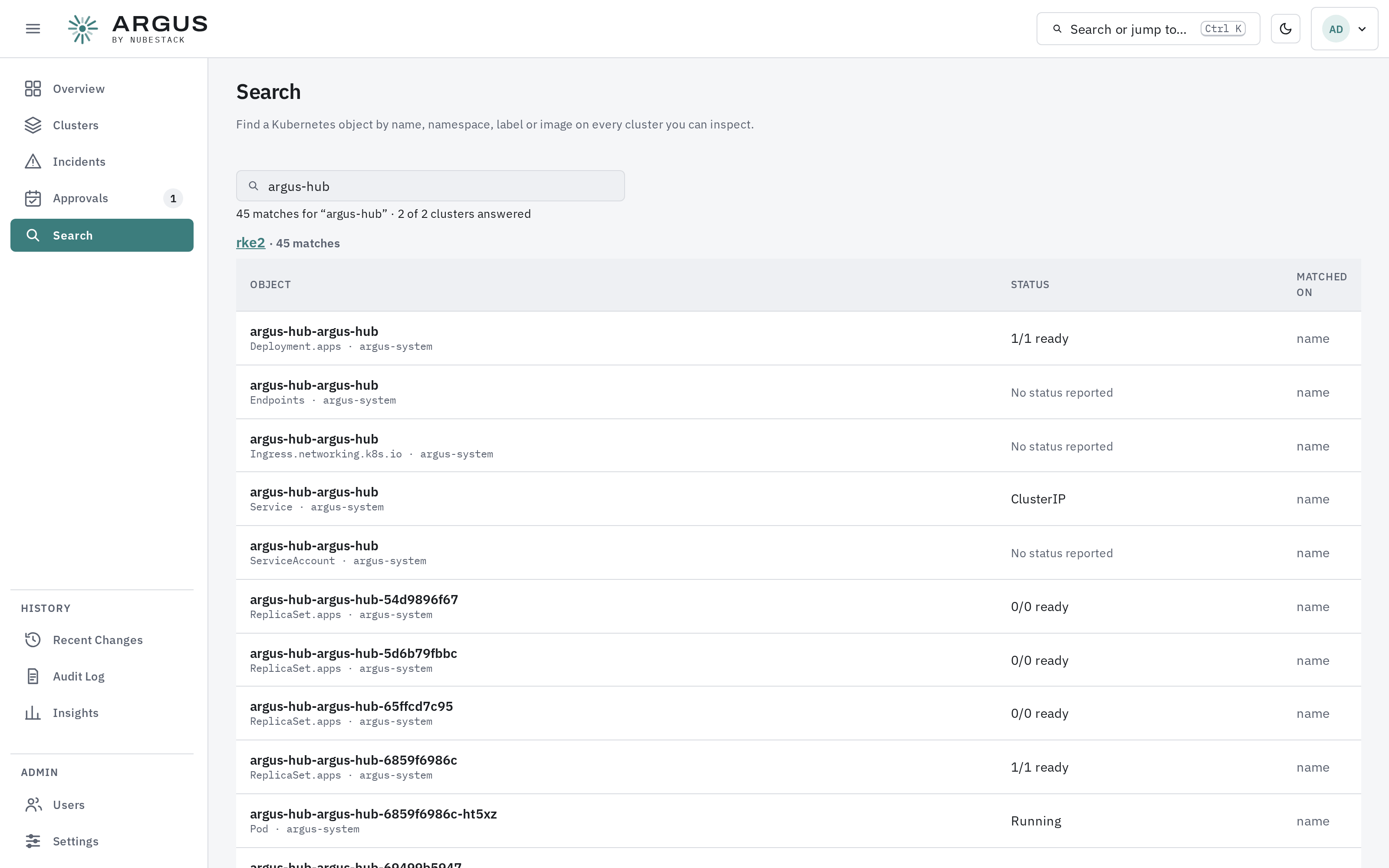
Results are grouped by cluster, with each cluster saying whether it answered.
Type a name, namespace, label or image. Each result gives the object's kind and namespace, its status, and which field matched. Select one to open it in the object panel. A cluster whose agent did not answer is listed as such, rather than appearing to have no matches.
Compare
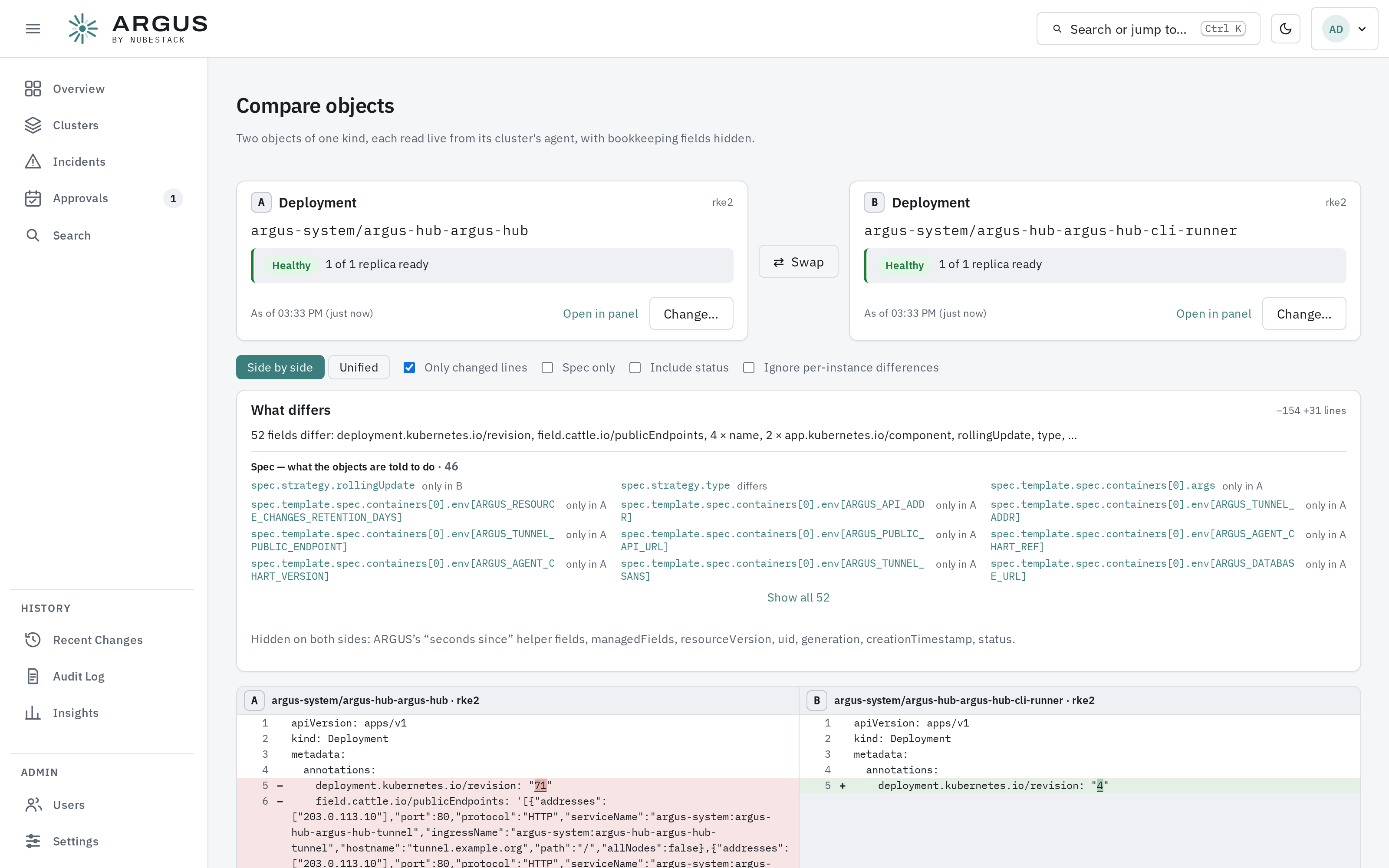
What differs is summarised first, spec before status, then shown line by line.
Pick object A and object B — of one kind, from the same cluster or different ones. What differs lists the changed fields, separating what the objects are told to do from what they report. Below, the two objects' YAML is shown Side by side or Unified.
| Option | Effect |
|---|---|
| Only changed lines | Hides identical lines |
| Spec only | Compares what the objects are told to do |
| Include status | Adds what they report |
| Ignore per-instance differences | Hides fields that always differ, such as names generated for each copy |
Bookkeeping fields — resource versions, managed fields, creation times — are hidden on both sides. Swap exchanges A and B, and Change… picks a different object.
Command palette
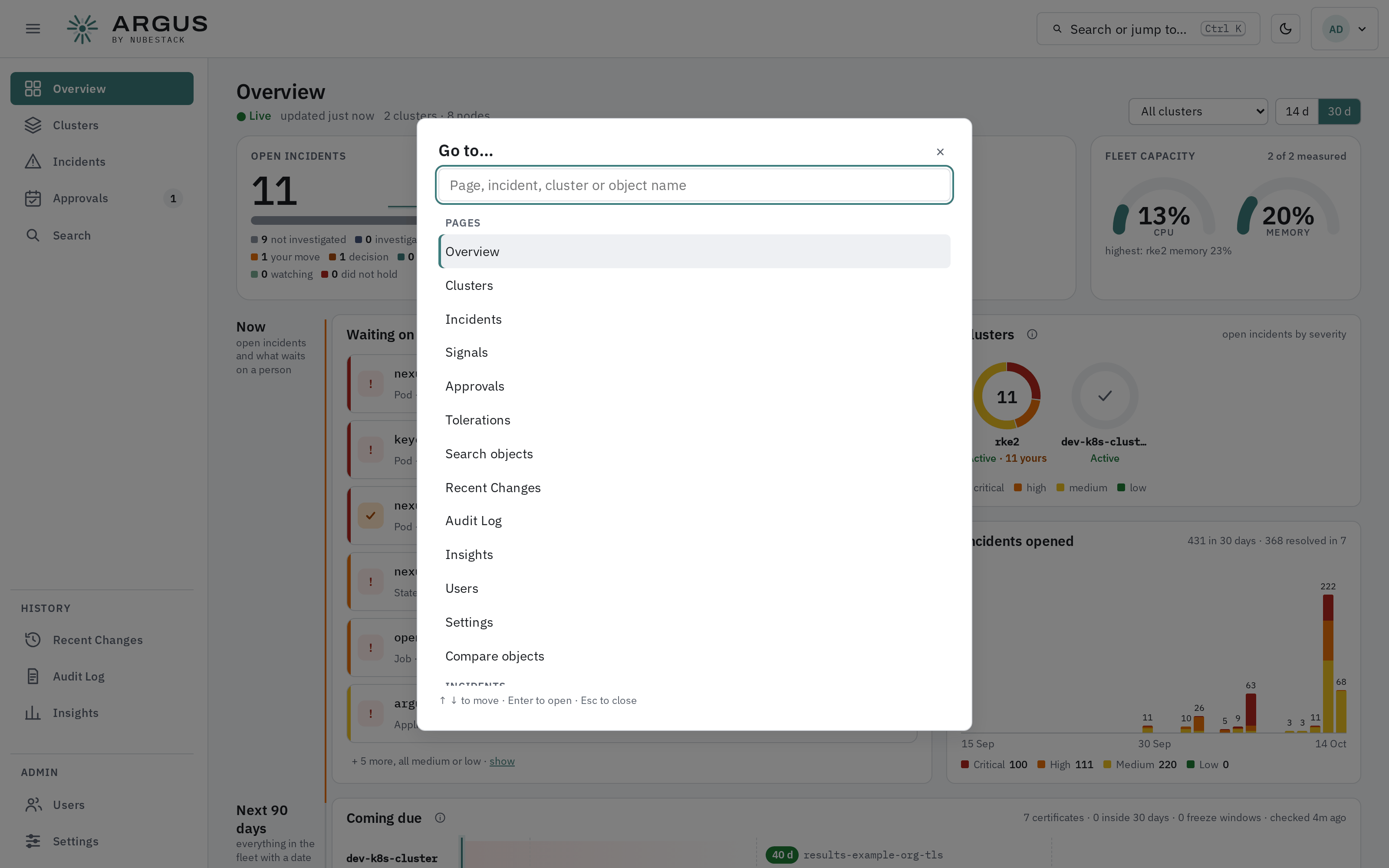
Press Ctrl+K, or select Search or jump to… in the header, to go to any page, incident, cluster or object by name.